
Download ScanRn – Free Screen Capture Tool for Windows, Mac & Android
ScanRn is a lightweight, efficient screen capture tool designed specifically for Windows users, developed by Laryon. This free software offers a streamlined solution for capturing screenshots with precision and speed. Whether you're documenting software workflows, saving important information from your screen, or creating tutorials, ScanRn delivers reliable performance without the bloat of complex interfaces.
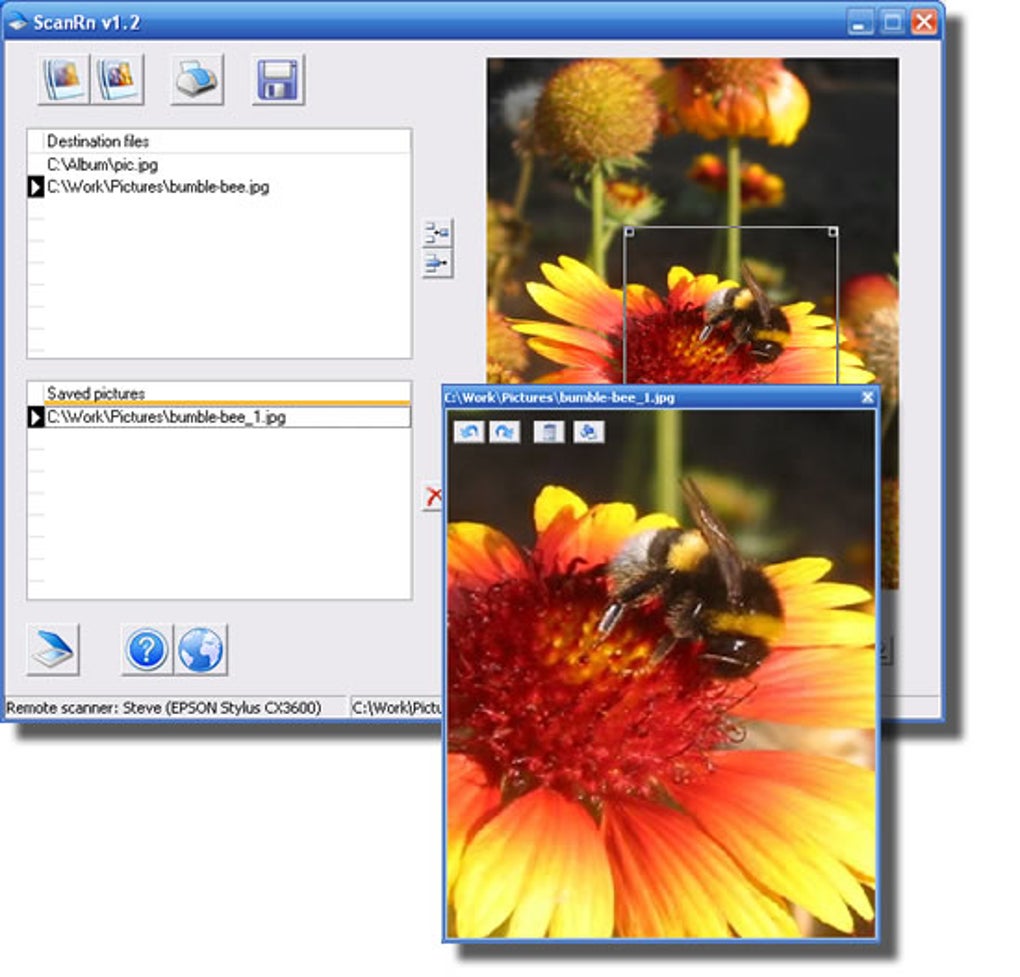
With support for customizable capture settings—including color or black and white output, adjustable resolution, and selective area capture—this tool is ideal for both casual users and professionals. The intuitive rubber tool allows for precise selection of screen regions, while the built-in image preview ensures you can verify your capture before saving. Additionally, ScanRn supports keyboard shortcuts for instant capture and printing, enhancing workflow efficiency.
Best of all, ScanRn is completely free to download and use, with no registration required. For those who need a simple, secure, and fast way to capture and manage screen content, ScanRn stands out as a top-tier utility.
Why ScanRn Stands Out Among Free Screen Capture Tools
When it comes to screen capture utilities, many options on the market come with intrusive ads, limited features, or complex interfaces that slow down productivity. ScanRn breaks the mold by offering a clean, focused experience tailored to users who value speed and simplicity. Unlike heavier software like oCam or LightShot, which include video recording and editing features, ScanRn concentrates solely on high-quality screenshot capture—making it faster and more responsive.
Its core strength lies in its ability to let users fine-tune capture settings without overwhelming them. You can choose between color and black and white output, which is particularly useful when preparing documents for printing or archiving. The adjustable resolution settings allow you to balance image quality with file size, perfect for sharing via email or uploading to cloud storage.
One of the most appreciated features is the rubber tool, which enables precise selection of screen areas. This is especially helpful when capturing only specific sections of a webpage, application window, or complex UI layouts. The tool’s intuitive drag-and-drop interface makes it easy to select and capture exactly what you need.
Additionally, the image preview function lets you review your capture instantly before saving, reducing the chance of errors or re-captures. This small but powerful feature significantly enhances user confidence and workflow accuracy. Another standout benefit is the keyboard shortcut support—press a single key combination to capture the entire screen and copy it directly to your clipboard, or even send it straight to the printer.
This is a game-changer for users who frequently document work or share content across teams.
Security is also a major consideration, and ScanRn handles it well. Since it’s a lightweight, standalone application, it doesn’t require constant internet access or background processes that could compromise privacy. The software is completely free, with no hidden fees or subscription traps. This makes it an excellent choice for students, remote workers, educators, and anyone looking for a secure, reliable screen capture tool without the hassle of registration or data collection.
How to Install and Use ScanRn – Step-by-Step Guide
Getting started with ScanRn is quick and straightforward. First, visit the official download page and click the “Download” button to get the latest version of the software. The installer is small in size, typically under 10 MB, ensuring a fast download even on slower connections.
Once downloaded, run the installer and follow the on-screen prompts. The installation process is minimal—no additional toolbars, no bundled software, and no third-party offers. This clean installation experience is a breath of fresh air compared to many free tools that come with unwanted add-ons.
After installation, launch ScanRn from your Start menu or desktop shortcut. The main interface is minimal, featuring a central capture area and a few essential controls. To begin capturing, click the “Capture” button or use the default keyboard shortcut (usually Ctrl+Shift+S).
A crosshair cursor will appear, allowing you to drag and select the area you want to capture using the rubber tool. As you adjust the selection, the preview window updates in real time, showing you exactly what will be saved. Once satisfied, release the mouse button to finalize the capture.
Before saving, you can preview the image in the built-in viewer. This is especially helpful for checking alignment, clarity, or formatting. You can then choose your output format (PNG, JPG, or BMP), set the resolution, and decide whether to save in color or black and white.
The software also supports direct printing—just click the “Print” button to send your capture to your default printer. For frequent users, customizing the keyboard shortcut in the settings menu is highly recommended to speed up workflow. Updates are automatically checked, and new versions are released regularly to fix bugs and improve performance.
ScanRn is designed to be updated seamlessly, ensuring you always have the latest, most secure version.
Compatibility and System Requirements
ScanRn is primarily designed for Windows operating systems, supporting Windows 7, 8, 8.1, and 10 (both 32-bit and 64-bit versions). While the official website lists Windows as the primary platform, users have reported successful operation on Windows 11 with no major issues. The software runs smoothly on systems with at least 2 GB of RAM and a modern processor, making it accessible even on older hardware. Its lightweight footprint ensures it doesn’t consume excessive CPU or memory, allowing you to run it alongside other applications without slowdowns.
For users on Mac or Linux, ScanRn is not officially supported. However, some users have managed to run it via compatibility layers like Wine, though results may vary. If you’re on a Mac or Linux system, consider alternatives like Snip & Sketch (Windows), Skitch, or LightShot for similar functionality.
For mobile users, ScanRn does not currently offer Android or iOS apps. If you need screen capture on mobile devices, tools like Samsung’s Screenshot feature or iOS’s built-in screenshot tools are more suitable. That said, if you’re a Windows user, ScanRn delivers excellent compatibility and performance across a wide range of devices.
One important note: ScanRn requires the scanner’s controller to be installed for full functionality. This is typically a driver or service that enables communication between the software and your screen capture hardware. Make sure this component is properly installed before launching ScanRn. Most modern Windows systems already have compatible drivers, but if you encounter issues, check your device manager or visit the manufacturer’s website for updates. Overall, the compatibility setup is minimal and well-documented, ensuring a smooth experience for most users.
Pros and Cons: Is ScanRn Right for You?
- Pros:
- Completely free with no registration required
- Lightweight and fast, minimal system resource usage
- Highly customizable capture settings (color, BW, resolution)
- Intuitive rubber tool for precise area selection
- Real-time image preview before saving
- Keyboard shortcut support for quick capture and print
- Secure and privacy-focused—no data collection
- Regular updates for bug fixes and performance improvements
- Cons:
- Only officially supports Windows (no native Mac or Linux version)
- Requires scanner controller for full functionality
- Limited to screenshot capture—no video recording
- Minimal interface may feel too basic for advanced users
- No mobile app for Android or iOS
Frequently Asked Questions (FAQ)
Is ScanRn really free to download and use?
-
Yes, ScanRn is completely free to download and use. There are no hidden fees, subscription models, or registration requirements. The software is distributed as a standalone application, allowing users to capture screenshots without any cost.
Can I use ScanRn on Mac or Linux?
-
ScanRn is officially designed for Windows only. While some users have attempted to run it on Mac or Linux using compatibility tools like Wine, these methods are not guaranteed to work. For Mac or Linux users, we recommend alternatives like Snip & Sketch or Skitch.
Does ScanRn support video recording?
-
No, ScanRn is focused solely on screen capture for static images. It does not include video recording capabilities. If you need to record screen videos, consider tools like oCam or Bandicam.
What is the scanner’s controller, and why is it needed?
-
The scanner’s controller is a system driver that enables communication between ScanRn and your screen capture hardware. It must be installed for the software to function properly. Most Windows systems already have compatible drivers, but if you encounter issues, check your device manager or update drivers via the manufacturer’s website.
Can I customize keyboard shortcuts in ScanRn?
-
Yes, ScanRn allows users to customize keyboard shortcuts in the settings menu. This feature lets you assign your preferred key combination for capturing, copying, or printing screenshots, significantly improving workflow efficiency.
Final Verdict: A Must-Have Free Screen Capture Tool for Windows
If you're searching for a reliable, fast, and secure screen capture tool for Windows, ScanRn is an excellent choice. Its combination of simplicity, customization, and performance makes it stand out in a crowded market of free utilities. Whether you're a student taking notes, a professional documenting processes, or a remote worker sharing updates, ScanRn delivers exactly what you need—without the clutter.
While it lacks mobile support and video recording, its focus on high-quality static captures is unmatched among free tools. The real-time preview, rubber tool, and keyboard shortcut support are powerful features that enhance usability and productivity. Plus, with regular updates and a commitment to privacy, ScanRn proves that free software can be both functional and trustworthy.
Download ScanRn today and experience seamless screen capture on your Windows PC—no strings attached.







